



How to Set Up Apple CarPlay in Your Mazda
Today’s in-vehicle technology is quite advanced compared what you would have found five years ago. Many vehicles have built-in 4G LTE Wi-Fi hot spots with ranges of up to 50 feet. Navigation, emergency response capability, and smartphone syncing are all common features. Sending and receiving calls, having your texts read aloud, streaming your favorite music playlists, and more can all be accomplished hands-free via Apple CarPlay. Setting up Apple CarPlay in your Mazda is simpler than you think. Take a look at this step-by-step guide that will help you start using this handy feature. View our new inventory today, or If you have any questions give us a call at (817) 663-7404.
What Is Mazda Connect?
Image via Flickr by Janitors | Licensed by CC BY 2.0
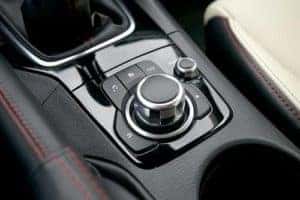
Mazda Connect is the infotainment technology hub for your Mazda vehicle. All your in-vehicle technology runs through your touch screen as well as your linked smartphone. Newer models feature a commander controller that runs your in-vehicle technology with a simple knob placed within easy reach of the driver. An extra-wide home screen allows you to see information at a glance.
By linking your smartphone to this system, you can safely operate it hands-free, making it easy to keep your eyes on the road and your hands on the wheel. Once connected, you can request navigation, send a text, and access your favorite phone apps with simple, intuitive voice commands.
Setting Up Apple CarPlay
It’s quite simple to pair your iPhone with your Mazda Connect system via Apple CarPlay. Complete these 10 easy steps, and you’ll be using Apply CarPlay in no time.
- Turn on your Mazda and leave the vehicle in park. Never attempt to pair a device while driving.
- From the main screen on your Mazda Connect system, you need to select the Settings icon.
- From the Settings menu, you’ll need to tab over to select Devices.
- You’ll select the Bluetooth option and then click on Add New Device. Now your Mazda Connect system is ready to be discovered by your iPhone or other available devices for syncing.
- Next, you have to go to your iPhone and open up your Settings menu. Find the Bluetooth switch and toggle this to on.
- Now, your iPhone will search for nearby Bluetooth devices. Your Mazda should show up in your iPhone’s list of Other Devices under the name Mazda. Select Mazda from this list.
- A six-digit pin will be displayed on your Mazda Connect screen. Make sure it matches the six-digit pin on your iPhone.
- If the pins match, click Pair on your iPhone and select yes on your Mazda Connect system.
- Your iPhone will ask for permission to connect. Click Allow.
- Your iPhone might give you an alert stating you don’t have a Bluetooth accessory installed. You don’t need one to operate with Mazda Connect, so click Ignore.
Your iPhone is now paired with your Mazda Connect system. You’re ready to operate one of the most advanced in-car technology systems available.
Using the Commander Control Knob
Your Mazda Connect system uses the Commander control knob, steering wheel controls, shortcut buttons, and the volume knob. By rotating the large Commander control knob, you can scroll through items on the screen. You can push down on it to select items, or in some situations, you can slide the knob forward, backward, left, or right.
Shortcut Buttons
With five shortcut buttons, you can quickly jump to commonly used applications. Pressing the Home button with the house icon takes you to the home screen. While you’re on the home screen, you can press the button again to switch between the digital clock and the home screen. To activate Apple CarPlay, press and hold the Home button.
The Entertainment button has a music note icon. Pressing this button activates the Mazda Connect media app or your Apple CarPlay’s media app when paired with your iPhone. The Map shortcut button has a triangular pointer icon that opens your dealer installed SD card map system or your Apple CarPlay navigation app.
The Back button uses a turning arrow icon and will return you to your previous screen when pressed. The Favorites button has a star icon. Pressing this button puts up a list of your favorite apps on the screen. To add an app, contact, navigation destination, etc., to your favorites, press and hold the Favorites button to record it in the system.
The Volume knob rotates to increase or decrease the stereo’s volume. By sliding it right or left, you can skip audio tracks, skim through radio stations, or fast-forward and rewind within a song. Pressing down on the Volume knob pauses or mutes the audio. Pressing and holding the Volume knob shuts off the Mazda Connect system.
Steering Wheel Controls
The Mazda Connect system can operate using five steering-wheel-mounted controls. By pressing the Talk button, you can answer an incoming call or activate the voice recognition software. Once activated, you can use the voice command feature to do things like request navigation, play your favorite song, and more. The Hang-Up button is used to decline an incoming call or end a current call.
You can press the Seek button to skip audio tracks forward and backward. The Volume Adjustment button lets you raise or lower the volume. Pressing the Mute button will mute the audio. Pressing it again will cancel the mute and return the sound to its original level.
Voice Commands
After you’ve paired your iPhone to your Mazda, you can access your Contacts list with voice commands. Once you’ve found the desired contact, you can ask to call the contact by simply saying “Call John Doe at home” or “Call John Doe’s cell.” You can say the word “redial,” and the system will automatically dial the last outgoing number. You can even speak out the phone number to make a call.
At Hiley Mazda of Fort Worth, we pride ourselves on delivering world-class service and support to all of our customers. We hope you found this step-by-step guide helpful and are now up and running Apple CarPlay with your iPhone successfully paired. You can learn more about Mazda Connect on our website, or you can visit us anytime, and one of our technicians will be happy to answer any questions you might have.
0 comment(s) so far on How to Set Up Apple CarPlay in Your Mazda